 ASTRO 365
How to buy credits
You buy credits in the app and pay through Google Play — just like any other app on your phone. Here is how, step by step.
Buying in the app
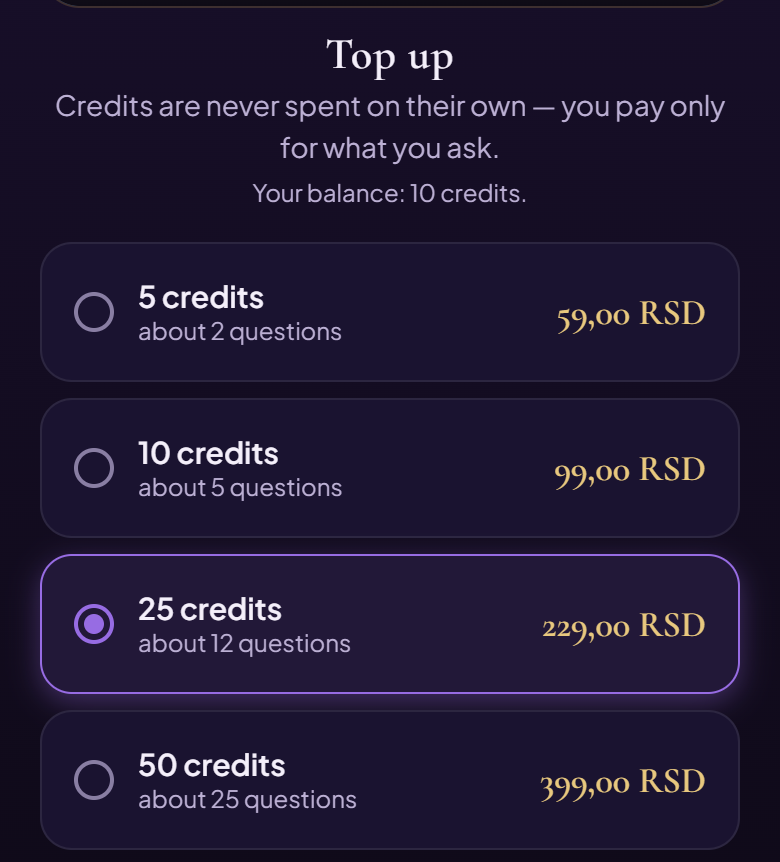
- When you run out of credits, the Top up credits ✦ button appears below the message. Tap it — the Checkout screen opens.
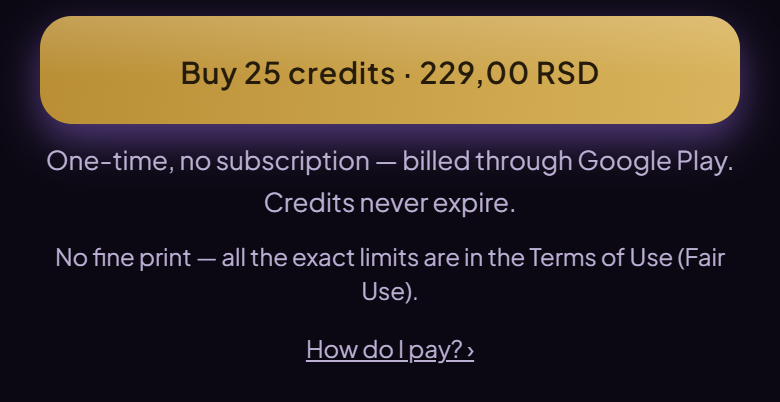
- Choose a pack. Google Play shows the price in your country’s currency. You pay once — it is not a subscription, and credits don’t expire.
- Tap the Buy … button below the packs. A Google Play window opens with the amount — confirm the purchase there.
- Credits usually arrive within a few seconds and you’ll see them in your balance.
If the credits haven’t arrived after a few minutes but Google has e-mailed you a purchase confirmation, write to us with the order number from that e-mail (it starts with GPA.) — we’ll look into it.
The Restore purchase button on the same screen brings back a Premium subscription when you change phones. Credits belong to your account in the app.
If Google Play asks for a payment method
If the Google Play window shows no card, or says you need to add a payment method, you only add it once and it then works for every purchase:
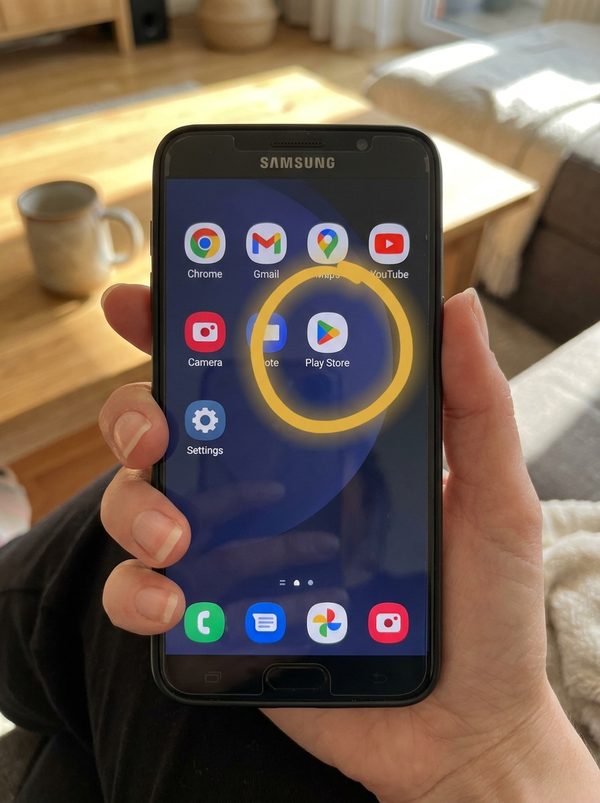
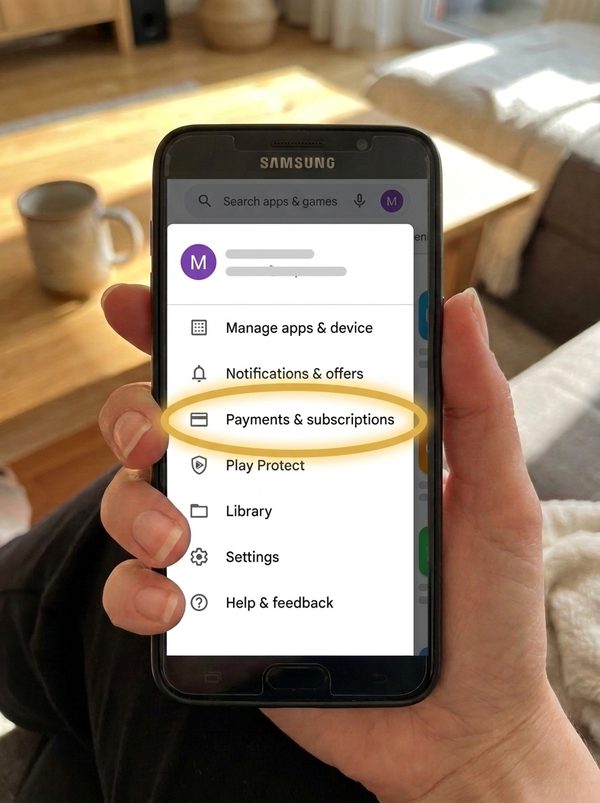
- Open the Play Store app.
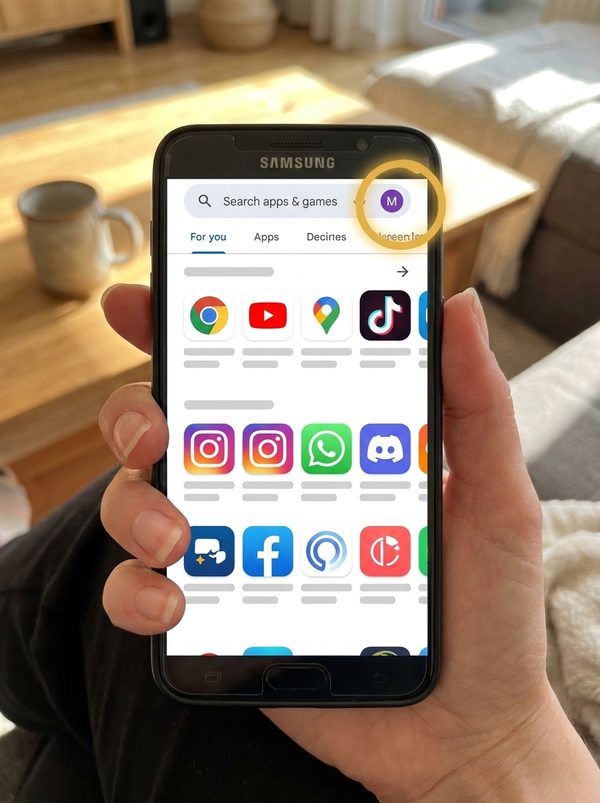
- Tap your profile picture at the top right.
- Choose Payments & subscriptions, then Payment methods.
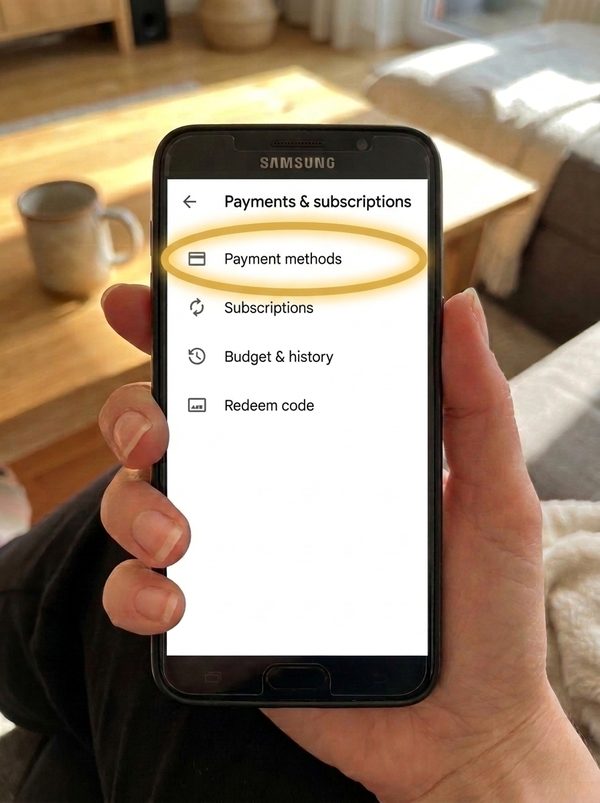
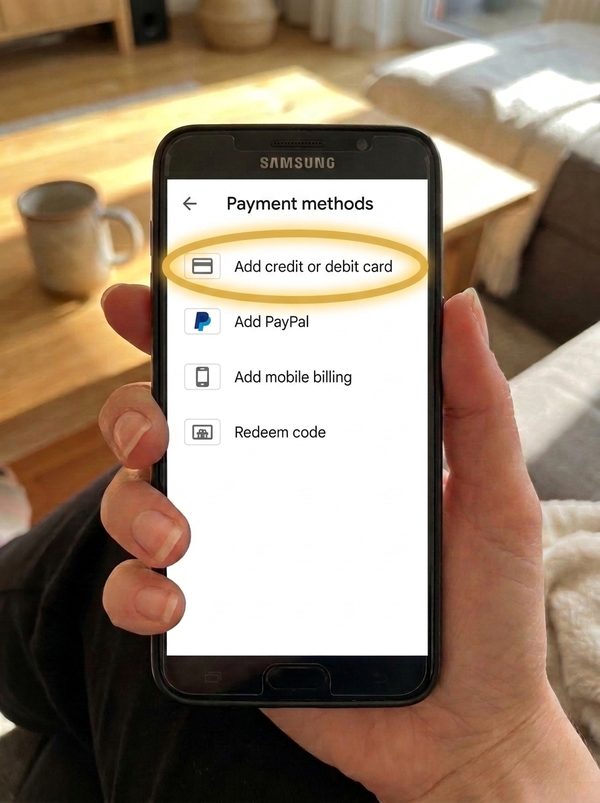
- Tap Add a payment method and follow the on-screen instructions.
- Go back to Astro 365 and choose your pack again.
Most people add a bank card — Visa or Mastercard, debit cards work too. In some countries you can also use PayPal, a Google Play gift card or mobile carrier billing — Google Play shows you what is available where you are.
Menu names may differ slightly depending on your Play Store version. Google’s official guide: Add a payment method (Google Play Help)
If it’s easier, ask someone close to you to help — you only add the card once.
If your bank declines the card
The most common reasons, and what can help:
- Online payments are switched off. Some cards are set up only for paying in shops, or don’t allow payments abroad. You can change this in your bank’s app or by calling your bank.
- Your bank wants a confirmation. Sometimes the bank asks you to confirm the purchase with a code by text message or in its app (3-D Secure). If the confirmation doesn’t arrive in time, the payment is cancelled — try again and confirm straight away.
- Not enough funds, or the card has expired. Check your balance and the date on the card.
- The card details are wrong. Check the number, expiry date and CVC code in the Play Store under Payment methods.
Only your bank knows the exact reason for a decline. We never see your card details — Google handles the whole payment.
Need help?
Write to us — we answer every message. If you were charged but the credits didn’t arrive, include the order number from the Google Play e-mail.